
Record Kingshot on your iPhone and publish it on YouTube
Everything you need to go from "I have a phone" to a clean 1080p60 guide video — with a voice-over or without one. You can do the whole thing with free software; the paid upgrades are optional and listed at the end.
Step 0
What you need
iPhone
Any model that runs Kingshot smoothly. Required.
A computer
Mac or Windows, for editing and organizing clips. Required.
USB microphone
Only if you want voice-over. Optional — start without it.
Publish silent first if you want. Clean gameplay with on-screen titles and zooms is a perfectly good video. Add narration once you're comfortable.
Step 1
Set up your iPhone once
- 1
Add the record button
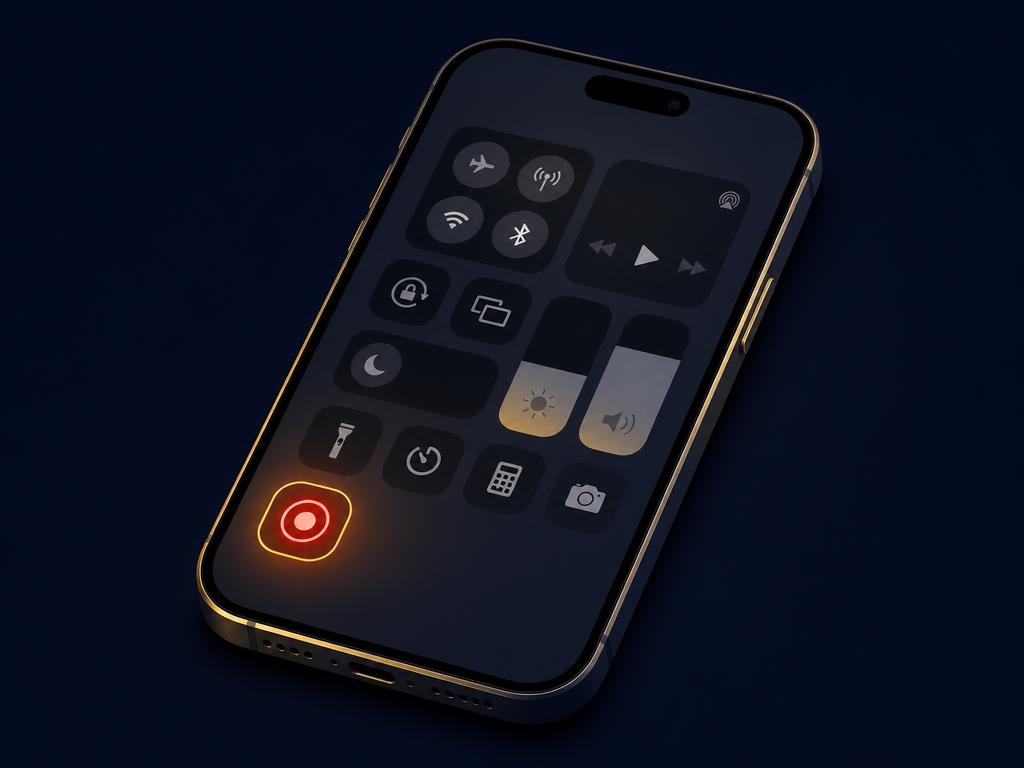
Settings → Control Center → scroll to More Controls → tap the green + next to Screen Recording. It now lives in Control Center permanently.
- 2
Learn the swipe
Face ID iPhones: swipe down from the top-right corner. Home-button iPhones: swipe up from the bottom edge.
- 3
Silence everything
Control Center → Focus → Do Not Disturb. A banner mid-battle ruins an otherwise perfect take.
- 4
Set graphics + frame rate
In Kingshot: Settings → Graphics. Pick the highest quality your phone holds without stutter, and enable the high frame-rate option if your model offers it. Smooth beats pretty.
- 5
Check storage and battery
Screen recording at high frame rate eats roughly 1–2 GB per 10 minutes. Free up space first and record plugged in for long sessions.
Step 2
Record your first clip
- 1
Open Kingshot first
Get to the exact screen you want to show before you start recording. No fumbling on camera.
- 2
Start the recording
Open Control Center and tap the record button. You get a 3-second countdown, then a red indicator appears.
- 3
Mic off for gameplay
Long-press the record button and make sure Microphone is off. You'll add narration later — see below.
- 4
Wait three seconds
Give yourself a clean lead-in so your first frames aren't Control Center closing.
- 5
Do one thing, then stop
Tap the red indicator (or the clock) → Stop. The clip saves to Photos → Recents as a .mov file.
Short clips beat long sessions. One action per clip means you can reuse the footage in five different videos instead of scrubbing a 40-minute file.
The one rule
Record silent, narrate later
The gap between amateur and professional gaming videos is almost never video quality. It's audio — and it's clarity. Talking while you play splits your attention, so you explain worse and misplay more.
Record gameplay silently
Cut the edit
Watch the finished timeline
Record the voice-over
Tools
Apps we actually recommend
| App | Role | Price | Pick this if… |
|---|---|---|---|
| iOS Screen Recording | Recording | Free, built in | Pick this. There is no third-party iPhone recorder that beats it for game capture. |
| DaVinci Resolve | Editing | Free (Studio paid) | Our pick. Best free audio tools, zooms, subtitles, and colour — and you won't outgrow it. |
| CapCut | Editing | Free tier | Pick this if you want a video out tonight. Fast captions, weaker long-form control. |
| Final Cut Pro | Editing | Paid, Mac/iPad | Pick this only if you're already in the Apple ecosystem and want speed on a Mac. |
| Resolve Voice Isolation | Audio cleanup | Free in Resolve | First stop for room noise and hum. No extra software needed. |
| Adobe Podcast Enhance | Audio cleanup | Free web tool | Use when your raw voice track is rough — it makes cheap mics sound studio-adjacent. |
Microphones
| Tier | Mic | Why |
|---|---|---|
| Budget | FIFINE USB mics | Genuinely fine for narration. The cheapest step up from phone audio that people notice. |
| Budget | Blue Yeti | The default for a reason. Use the cardioid pattern and speak close. |
| Better | RØDE NT-USB+ | Cleaner preamp, built-in processing, plug-and-play. Best value at the next tier. |
| Better | Shure MV7 | USB and XLR. Very forgiving in untreated rooms — the safest choice if your room echoes. |
Good audio will improve your videos more than any camera or capture upgrade. If you only spend money once, spend it here.
Step 3
Get the clips off your iPhone
AirDrop → Mac
Select clips in Photos → Share → AirDrop. Fastest for a handful of files.
iCloud Photos
Turn on Download Originals on the Mac so you don't edit compressed proxies.
USB → Windows
Plug in, unlock the phone, tap Trust, then import with the Photos app or File Explorer.
Step 4
Clip shot-list
Record these as separate clips whenever you play. Later you assemble them like B-roll instead of re-recording generic footage for every video.
| Clip | Length | What to capture |
|---|---|---|
| Building upgrades | 30 sec | Tap-through of the upgrade panel and requirements. |
| Hero upgrades | 1 min | Star-up, gear, skill screens — one hero at a time. |
| Alliance tech | 45 sec | Donation flow and tech tree overview. |
| Battle | 2 min | Full march: rally join, travel, combat report. |
| Research | 30 sec | Tree navigation and a single research start. |
| Event rewards | 20 sec | Event page, milestones, claim animation. |
Step 5
Folder structure that survives month three
Name files with the date and subject (2026-08-08-hero-starup.mov) and drop them straight into the right folder on import. Ten minutes of discipline saves hours of scrubbing.
Kingshot Videos/
  Raw/
    Heroes/
    Buildings/
    Research/
    Events/
    Battles/
    World Map/
    Alliance/
    Arena/
    UI/
    Resources/
  Projects/
  Exports/
  Thumbnails/
Step 6
Recording the voice-over
- 1
Open your finished timeline
Watch it once through before you speak. You'll instantly know what needs explaining.
- 2
Script only the intro
The first 15 seconds are the only part worth writing word for word.
- 3
Then speak naturally
Talk to one person, not an audience. Pause instead of saying “um” — pauses cut out cleanly.
- 4
Do pickups, not retakes
Fluffed a sentence? Say it again immediately and keep rolling. Fix it in the edit.
Do this
"One mistake I see almost every new player make is rushing Town Center before upgrading these three buildings…"
Not this
"Okay guys… so… today… uh… we're gonna look at, like, some stuff…"
Step 7
Video structure that keeps people watching
| Section | Timing | What it does |
|---|---|---|
| 1. Hook | 0:00–0:15 | “Almost every new player wastes thousands of resources in their first week. Here's where it goes.” |
| 2. Show the result | 0:15–0:45 | “This is the city we're building toward.” Give them a reason to stay. |
| 3. Explain | Main body | One idea per section. Zoom on the number you're talking about. |
| 4. Summary | ~45 sec | Three takeaways, stated plainly. |
| 5. Next video | ~15 sec | “If you're about to hit Town Center 20, watch this one next.” |
Step 8
Thumbnails: one hero, one arrow, one number

Simple beats cluttered every time. Your thumbnail is read at the size of a postage stamp — one subject, one direction, one number.
Before you upload
Editing checklist
Tick these off on every video. It's the difference between "watchable" and "subscribed".
Rhythm
A weekly production schedule that holds up
| Day | Time | Work |
|---|---|---|
| Monday | 1–2 h | Record gameplay for the week's topics. |
| Tuesday | 2 h | Write scripts and organize clips into folders. |
| Wednesday | 2–3 h | Edit the main video, then record voice-over. |
| Thursday | 1 h | Design the thumbnail and upload. |
| Friday | 30 min | Publish, answer comments, note viewer questions for next week. |
Optional
Level up later
- Mac + QuickTime — Mirror the iPhone over USB and record straight to the computer — less compression, easier file handling.
- Teleprompter — An Elgato Prompter or any teleprompter makes scripted intros sound smooth instead of read.
- Stream Deck — Bind your repetitive editing actions. Saves real hours once you publish weekly.
- Audio processing — Resolve's Fairlight chain or Adobe Podcast Enhance is the cheapest quality jump you can make.
Questions
Frequently asked questions
›Can I record Kingshot on an iPhone without any extra app?
Yes. iOS has screen recording built in. Add it once in Settings → Control Center → More Controls → Screen Recording, then start it from Control Center whenever you play. No third-party recorder is needed or recommended.
›Should I talk while I play Kingshot?
No. Record gameplay silently with the microphone off, edit the timeline, then record a voice-over against the finished edit. You explain more clearly, misplay less, and your audio is far easier to clean up.
›How do I record iPhone game audio but not my voice?
Long-press the Control Center record button and leave Microphone off. iOS then captures only in-game audio, which keeps the gameplay track clean for narration later.
›How much storage does an iPhone screen recording use?
Roughly 1–2 GB per 10 minutes at high frame rate, depending on your model and how busy the scene is. Free up space before a session and record plugged in for long ones.
›What is the best free editor for mobile game videos?
DaVinci Resolve. The free version has the audio tools, zooms, subtitles, and colour work you need, and you won't outgrow it. CapCut is the faster option if you want a video published the same night.
›Do I need to buy a microphone to start a Kingshot channel?
No. Publish silent gameplay with on-screen titles and zooms first. When you add narration, a budget USB mic like a FIFINE or Blue Yeti is the single upgrade viewers actually notice.
›What settings should I export for YouTube?
1080p at 60 fps, H.264, with the voice track normalized to around -14 LUFS and music kept at -25 dB or lower. That matches how YouTube handles mobile gameplay best.
Positioning
Our take on Kingshot content
Don't try to out-pace the fast-cut mobile gaming channels. The Kingshot audience is starved of clear, data-driven explanation — calm narration, real numbers, comparisons, and guides that stay useful after the event ends. That style builds a loyal audience and keeps pulling views months after publishing.
- Clear, data-driven explanations
- Charts and comparisons when they help
- Calm, confident narration
- One consistent visual style
- Evergreen guides over event hype
- Answer the questions in your comments